Interactive worksheets from your own PDFs
A finished worksheet no longer needs a printer. Upload your own PDF or picture to Puro Editor, and pupils fill in the worksheet with a pen and a highlighter on a tablet, a Chromebook or a computer. The worksheet sits on the desk as a sheet of paper, shown whole, never cropped or stretched.
Each page of a multi-page PDF becomes its own worksheet page, and a worksheet can be part of a longer story. Before it there might be a read along text with audio, and after it a page where the completed worksheet appears again.
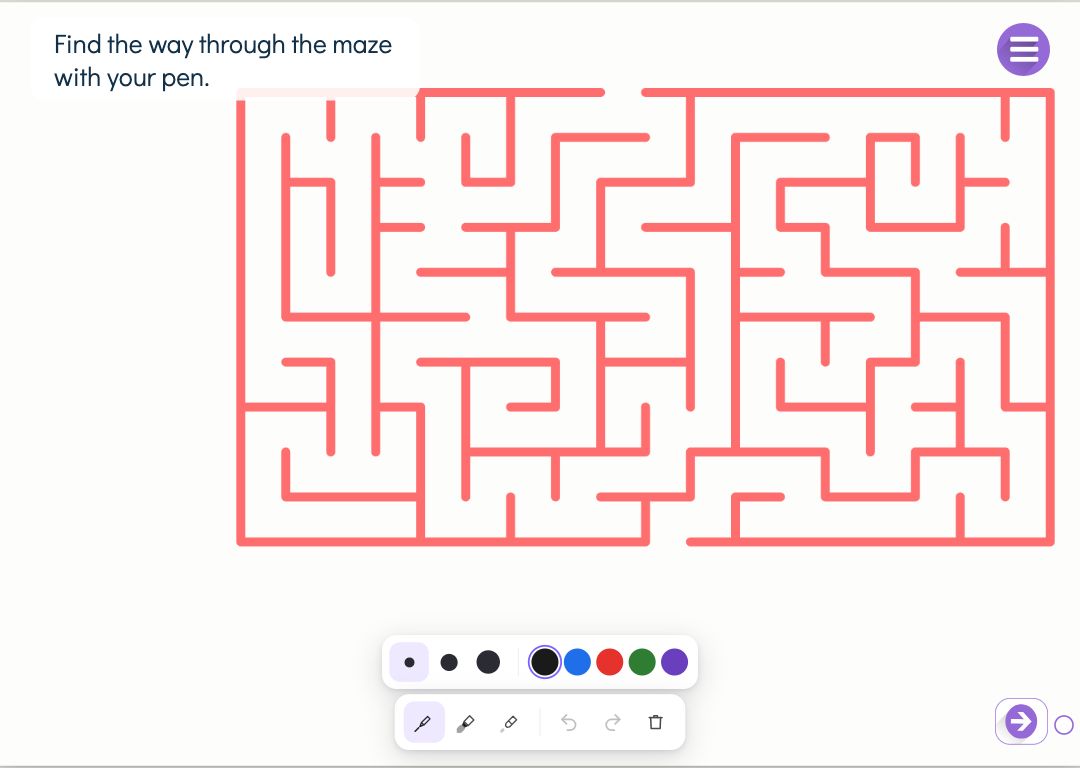
Try the exercise
This exercise was made with Puro Editor. Try it yourself – this is exactly what your pupils see.
What pupils do on the worksheet
Pupils write and draw with a pen in five colours, highlight with a yellow highlighter and correct with an eraser. There are three line widths, and any step can be undone. Pinching zooms into the sheet when a small space needs careful writing.
The worksheet does not check answers; it works like a paper worksheet. If you want a task that checks itself, add one on the same topic to the story as well, such as a multiple choice question.
Multi-page PDFs
When you upload a multi-page PDF on a worksheet page, the first page goes on that page and the rest become worksheet pages of their own straight after it. One upload adds up to 10 pages. Every page gets the same instruction.
Puro works out the paper size (A3, A4 or A5) and orientation from the PDF page, and you can change them yourself. Other paper sizes, such as US Letter, are matched to the nearest A size.
My Worksheets
If you use the same worksheets often, import them all at once into My Worksheets. You can open it from your story list and from a worksheet page.
- Several PDFs at once
- Choose one or more PDFs. Each becomes its own set, which you can rename. Up to 30 pages are kept from each PDF.
- Pages into a story
- On a worksheet page you choose pages from My Worksheets. Each chosen page becomes a worksheet page of its own.
- Create a story from worksheets
- Choose the pages of a set, a story name and a language. Puro creates a story with a cover page and a worksheet page for each chosen page, up to 29.
- Removing does not break stories
- When you remove a set from My Worksheets, stories that use its pages keep working.
The completed worksheet on a later page
You can show the worksheet a pupil has filled in on later pages of the story. Switch the setting on for the worksheet page, then add the worksheet to a later page from the earlier drawings. It appears there with the pupil’s marks, so they can come back to their own work as the topic continues.
How to create this exercise
- Write the instruction for the pupil, such as “Fill in the missing words”. You can record it or upload it as an audio file.
- Upload the worksheet as a PDF or a picture (PNG or JPG), or choose pages from My Worksheets.
- Check the paper size (A3, A4 or A5) and orientation.
- Choose whether the completed worksheet is shown on later pages.
- Choose the page background.
Tip: Leave generous space for answers, because writing with a finger comes out larger than writing with a pencil. Zooming makes small spaces workable, but a roomy worksheet is more pleasant to fill in, and the pupil’s attention stays on the task rather than on moving the sheet around.
Frequently asked questions
- Is Puro Editor free?
- Yes. Puro Editor is free for teachers, including importing and sharing worksheets.
- Do pupils need an account?
- No. You publish the activity and share the link, and pupils open it in the browser without signing in.
- Does it work on an interactive whiteboard, an iPad and with a stylus?
- Yes. The worksheet runs in the browser with nothing to install, on tablets (iPad and Android), Chromebooks, computers and interactive whiteboards. Writing feels most natural with a finger or a stylus, but a mouse works too.
- Can I set a worksheet as homework?
- Yes. Share the link on your school’s learning platform or by email, and pupils fill in the worksheet at home in the browser, with no printing needed.
- What files can I use?
- A PDF or a picture (PNG or JPG). PDF pages are turned into images, and the worksheet is shown whole on the sheet without cropping.
- Do multi-page PDFs work?
- Yes. Each page becomes a worksheet page of its own. Uploading on a worksheet page adds up to 10 pages at a time, and My Worksheets keeps up to 30 pages from each PDF.
- Can pupils type into the PDF’s form fields?
- No. The worksheet is an image on the sheet, and pupils write on top of it with a pen or a finger, as they would on paper.
Do you want to turn your worksheets into interactive ones?
Sign up